Method 1
Use your Windows device as a mobile hotspot. This method works with Quest devices, handheld game consoles, and Apple TV.
- Follow Microsoft's guide to use your Windows device as a mobile hotspot and create a hotspot.
- In Control Panel > Network and Internet > Network Connections, share wintun with your mobile hotspot. Tun mode must be enabled first.
- Connect your other device to this Wi-Fi network.
Method 2
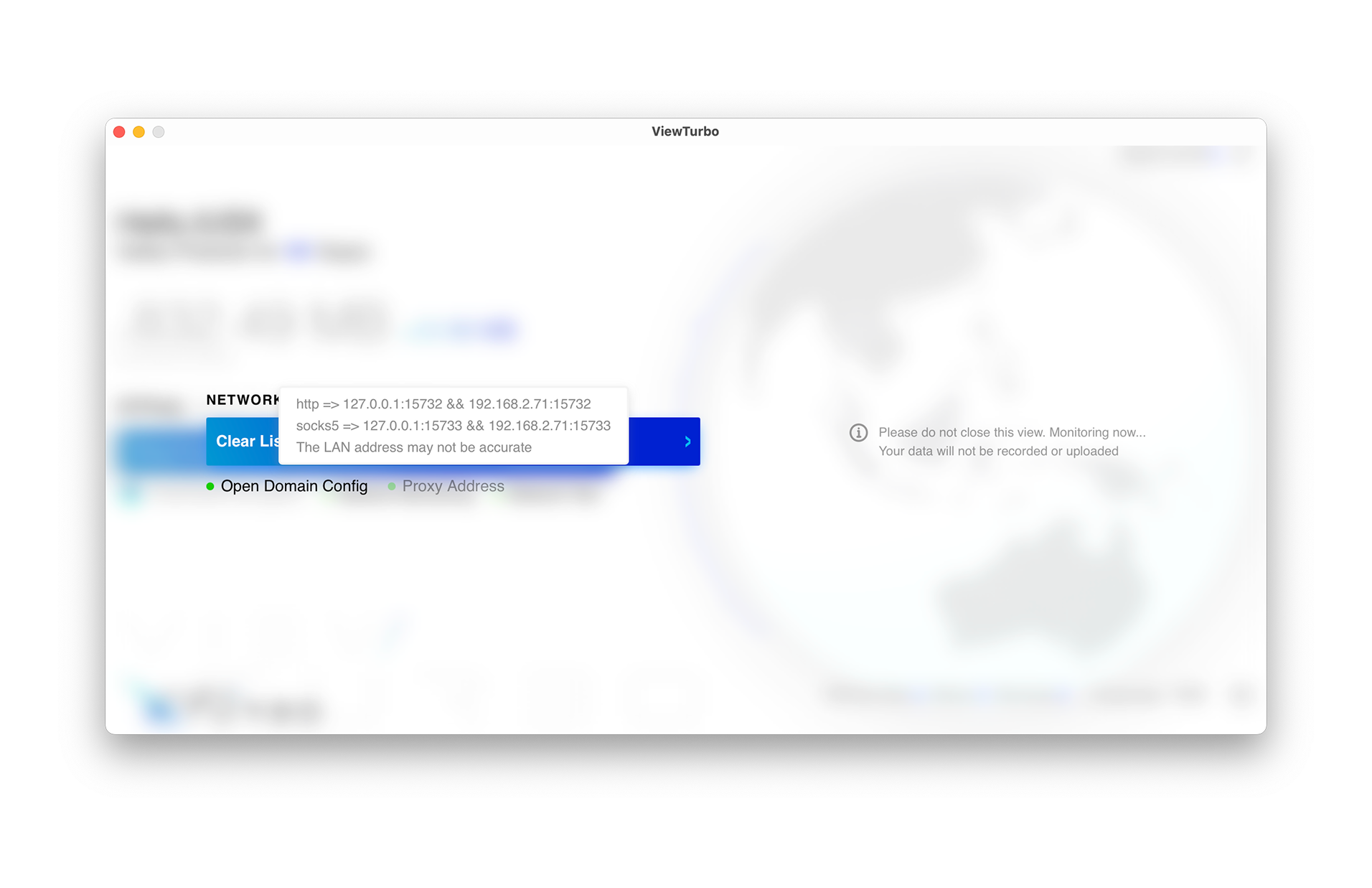
If you don’t have a soft router, you can start ViewTurbo on your laptop or desktop computer, and connect your console system (Xbox, Switch, etc.) to the same network (the same Wi-Fi) using ViewTurbo’s proxy address.
This tutorial is for using ViewTurbo in environments such as Nintendo Switch, Xbox, and PlayStation.
You need to start ViewTurbo and click Network Monitoring -> Proxy Address, where you’ll see the HTTP and SOCKS5 addresses, along with the current network IP.
HTTP: 127.0.0.1:15732 && <Your LAN IP>:<15732>
SOCKS5: 127.0.0.1:15732 && <Your LAN IP>:<15732>
*The IP address of your current network will change depending on your network. In the example,
192.168.2.71 is the local network IP address.*
Nintendo Switch
Using Nintendo Switch as an example — this method also applies to Xbox, PlayStation, and other console systems.
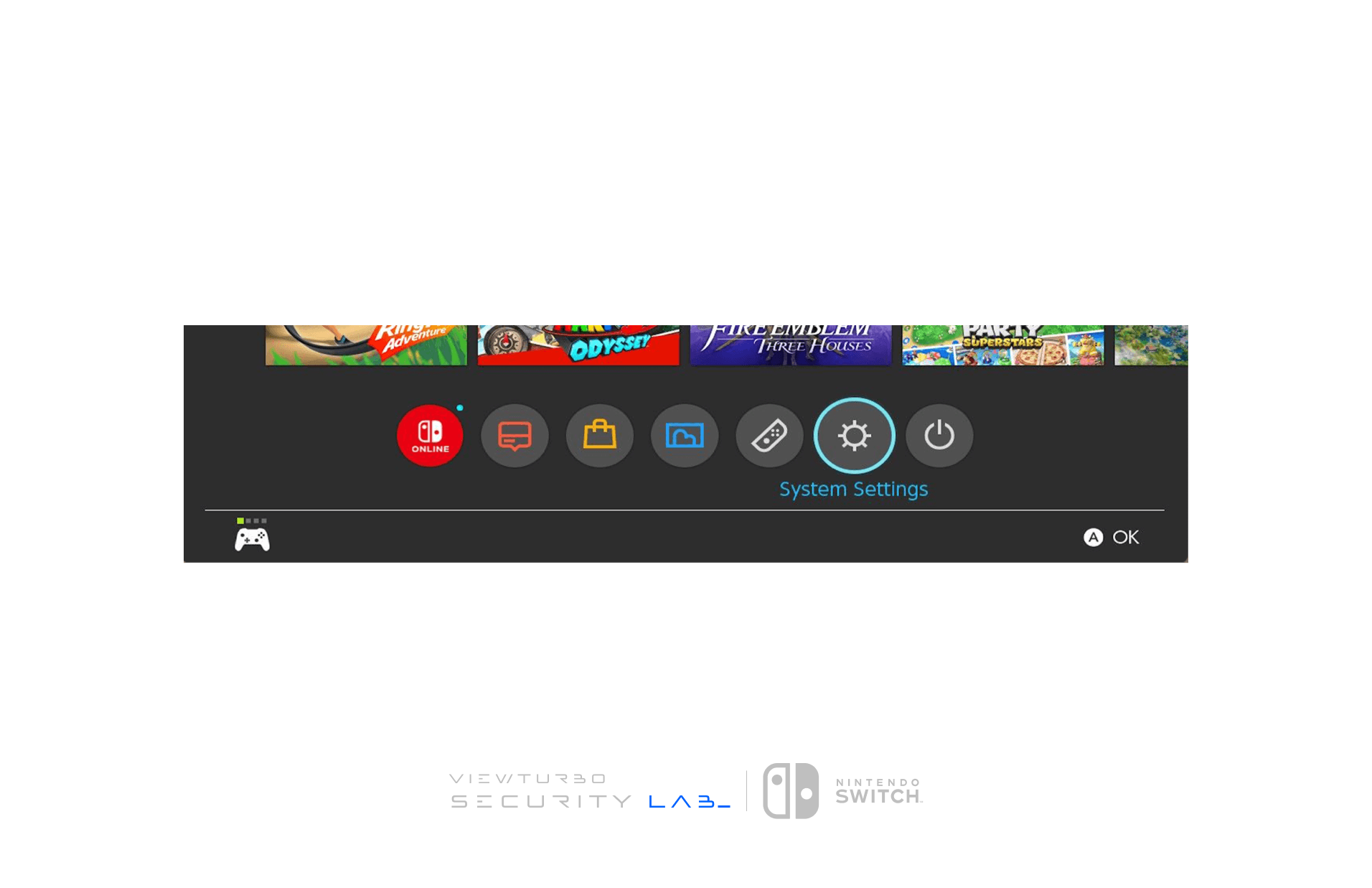
- Go to System Settings
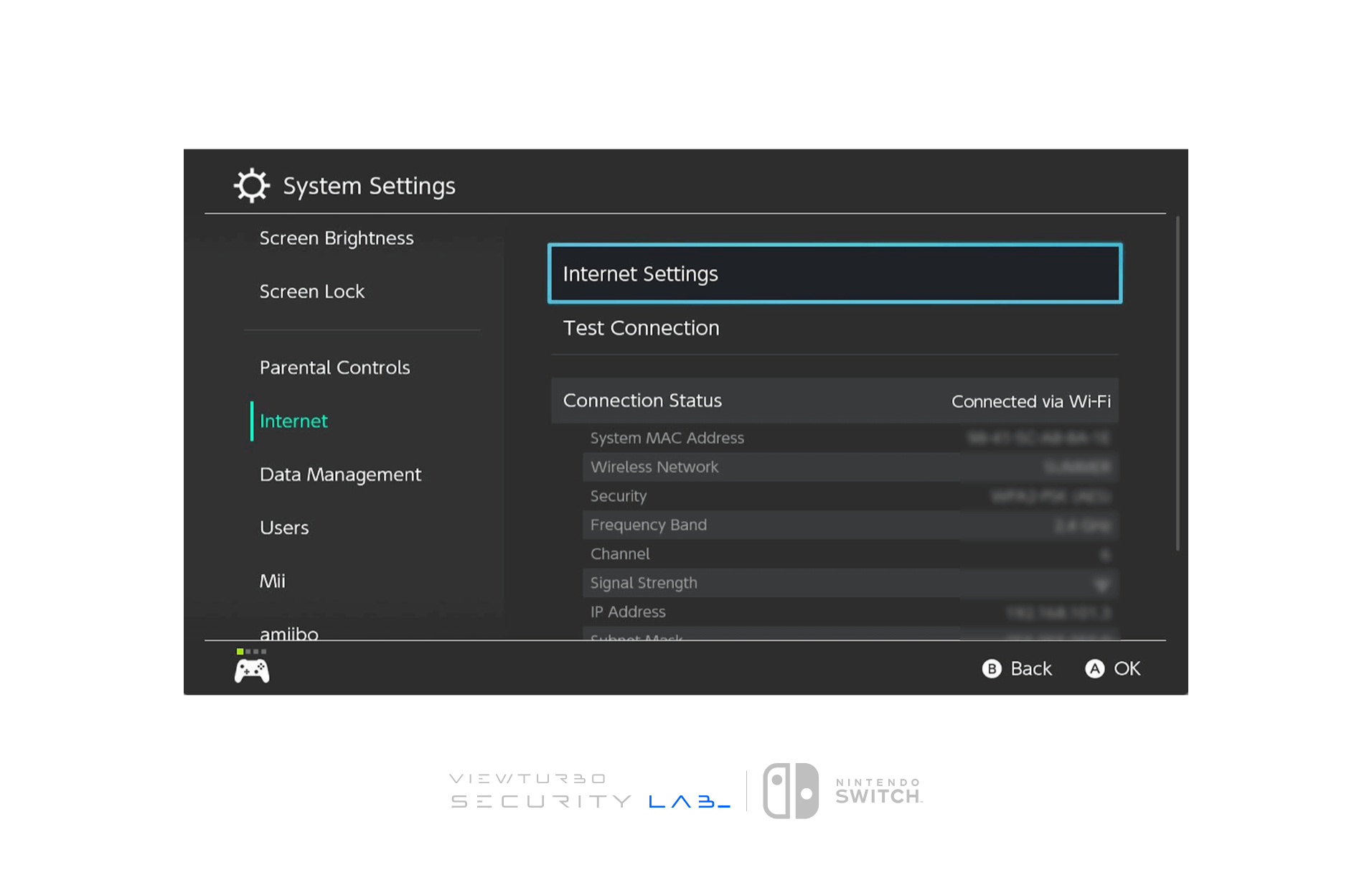
- Click
Internet Settings -> Connect to the same Wi-Fi network - Choose "Change Settings."
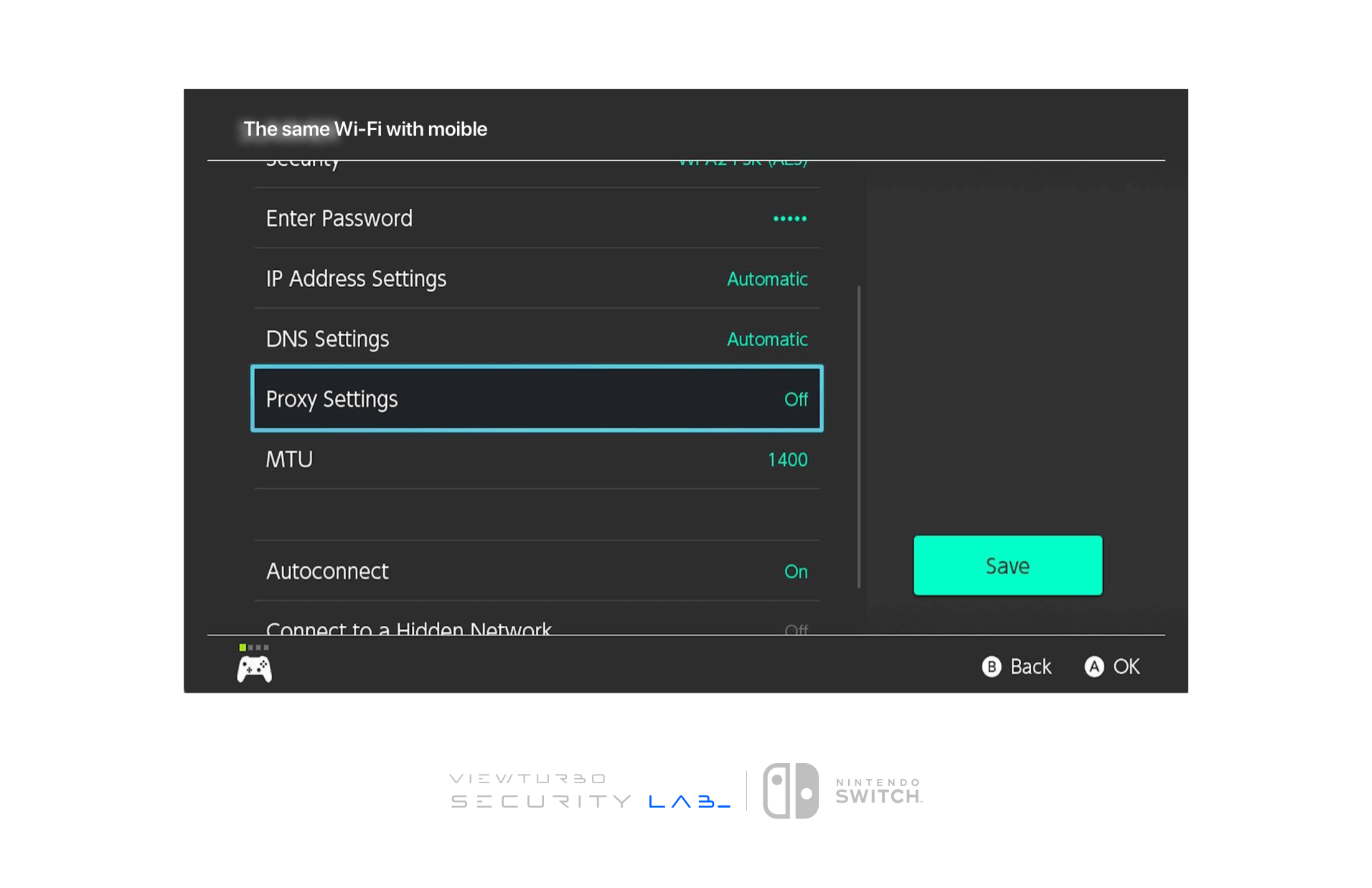
Select Proxy Settings and switch the status to On:
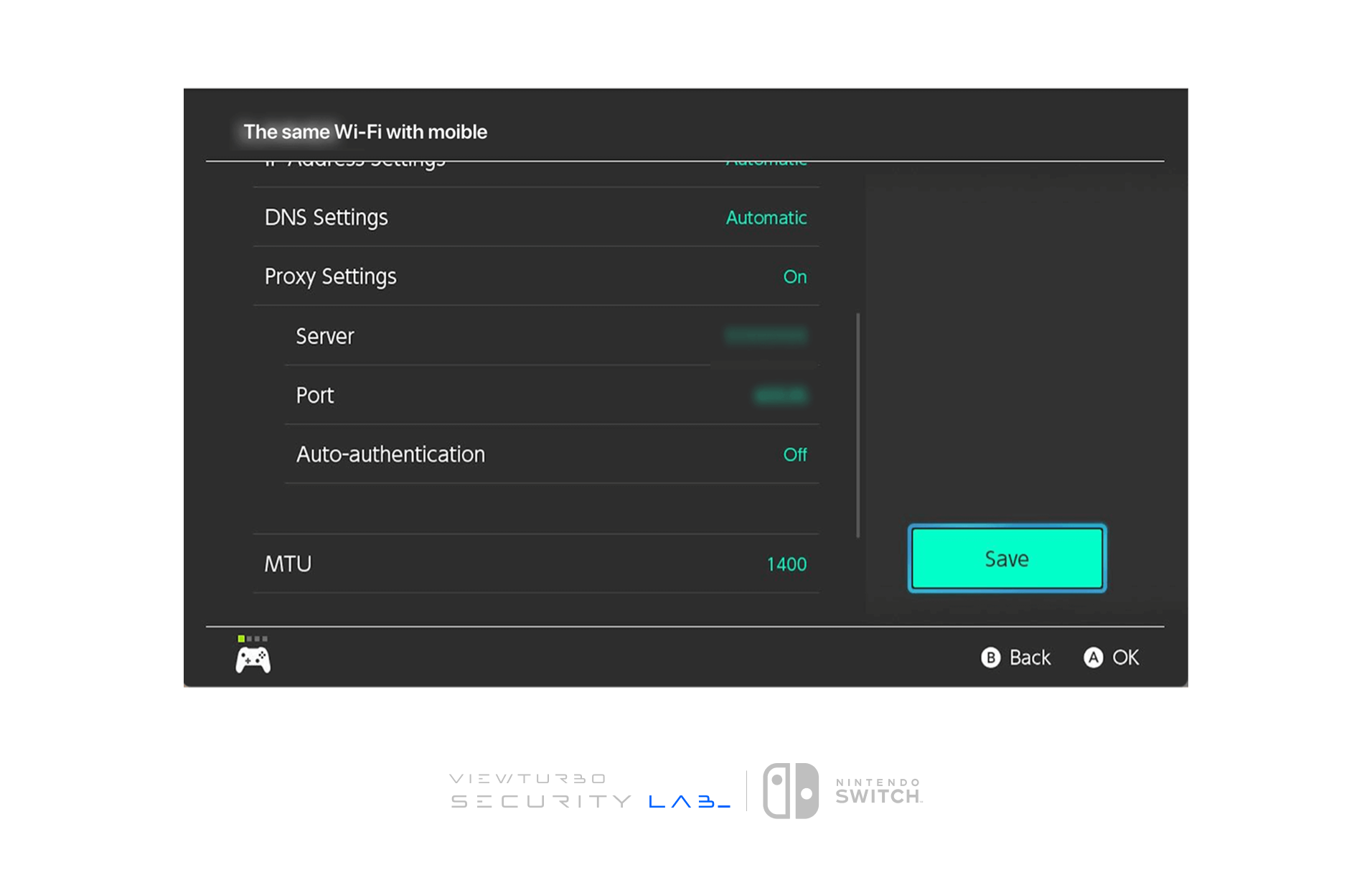
- Server: Enter your LAN IP
- Port: Enter
15732